Taxes and Fees
Tax Rates
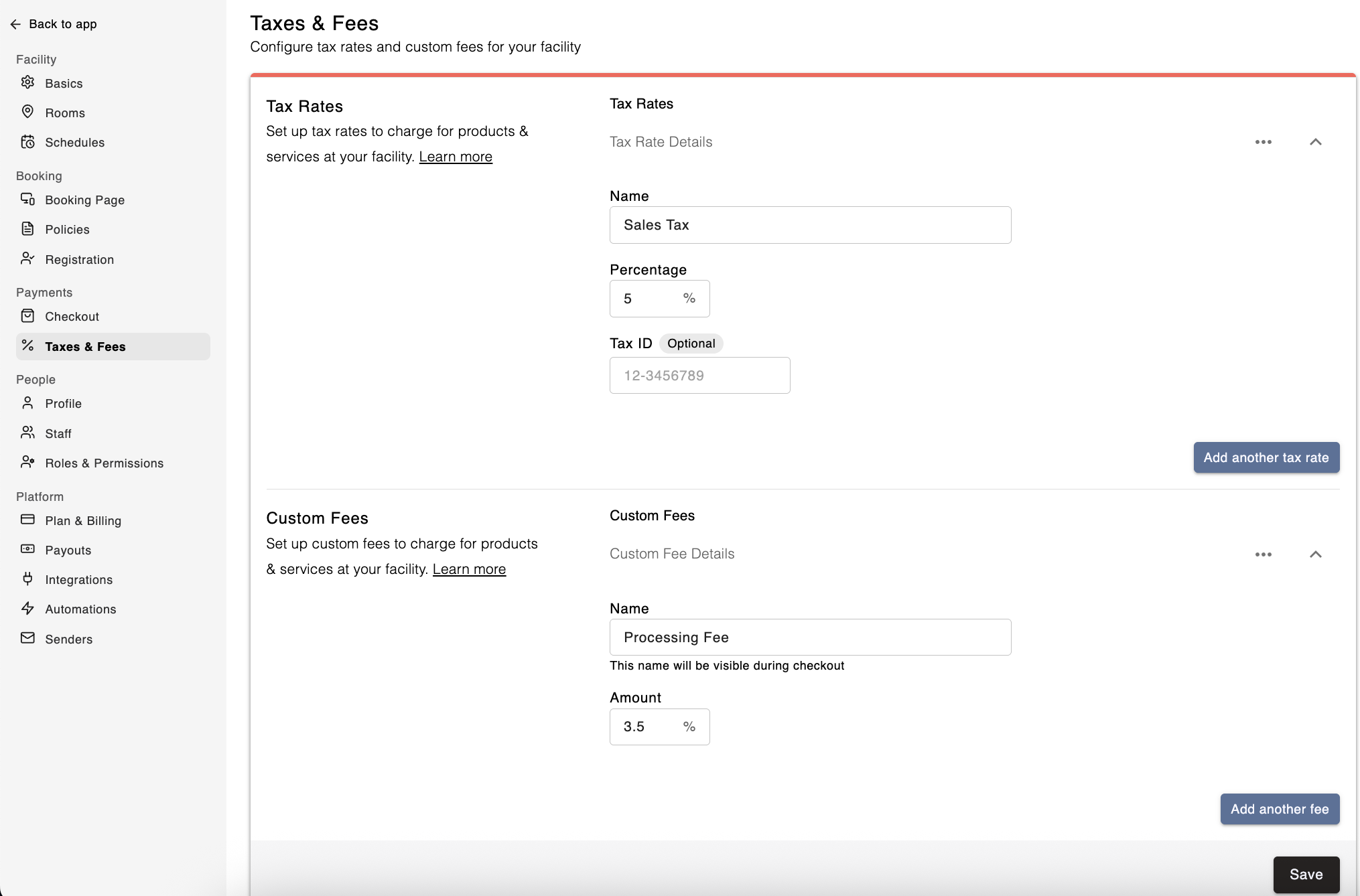
You can collect tax on your services and products by setting up tax rates in your facility settings. Follow these steps to configure tax rates:
- Go to Settings, and under Payments, select Taxes and Fees
- For Taxes, click the "Add tax rate" button
- Enter in a name and percentage for the tax rate.
- Optional: If you need to add your Tax ID to receipts, input your Tax ID here
- Hit "Save" and the rate will now be saved on your facility.
Enabling a Tax Rate
Once you've created a tax rate, you need to apply it to specific services or products:
- Go to the Service Page for the item you want to apply tax to (e.g., rentals, lessons, memberships).
- Scroll to Advanced Settings and find the "Collect tax" toggle.
- Enable the toggle and select the tax rate you created.
- Click "Save" to confirm your changes.
Now, when customers purchase this service, the system will automatically apply the selected tax rate.
💡 Tip: Repeat these steps for each service or product that requires tax collection.

Custom Fees
You can add custom fees to services or products at your facility, such as processing fees, technology fees, or any other fees that is payable by customers.
To create a Custom Fee rate,
- Go to Settings, and under Payments, select Taxes and Fees
- For Custom Fees, click the "Add Fee" button
- Enter in a name and percentage for the tax rate.
- Hit "Save" and the rate will now be saved on your facility.

Enabling a Custom Fee
Once you've created a custom fee, you will need to enable the Custom Fee for each individual service or product where you'd like to collect the fee:
- In Swift Admin, go to the Service Page for the item you want to collect the fee (e.g., open the individual service page or a rental, lesson, camp etc).
- Scroll to Advanced Settings and expand the section
- Find the "Collect custom fee" toggle and enable it
- Select the Custom Fee that you had created
- Click "Save" to confirm your changes.

Now, when customers purchase this service, the system will automatically apply the selected custom fee on top of their purchase.
If both a Custom Fee and Tax Rate are enabled for a service, the tax will be calculated on the total amount, including the custom fee, since this fee is paid by the customer.
💡 Tip: Repeat these steps for each service or product that you would like to collect the custom fee.
Updating a custom fee
To edit an existing custom fee, simply expand the fee you're looking to edit and update the name or amount as needed. Once you hit Save, all future transactions will reflect the updated fee.
Deleting a custom fee
To delete a particular custom fee, click on the trash icon next to the fee.
Remember, deleting a custom fee will not affect past transactions, so your past reports will remain accurate.