Updating a customer's email address
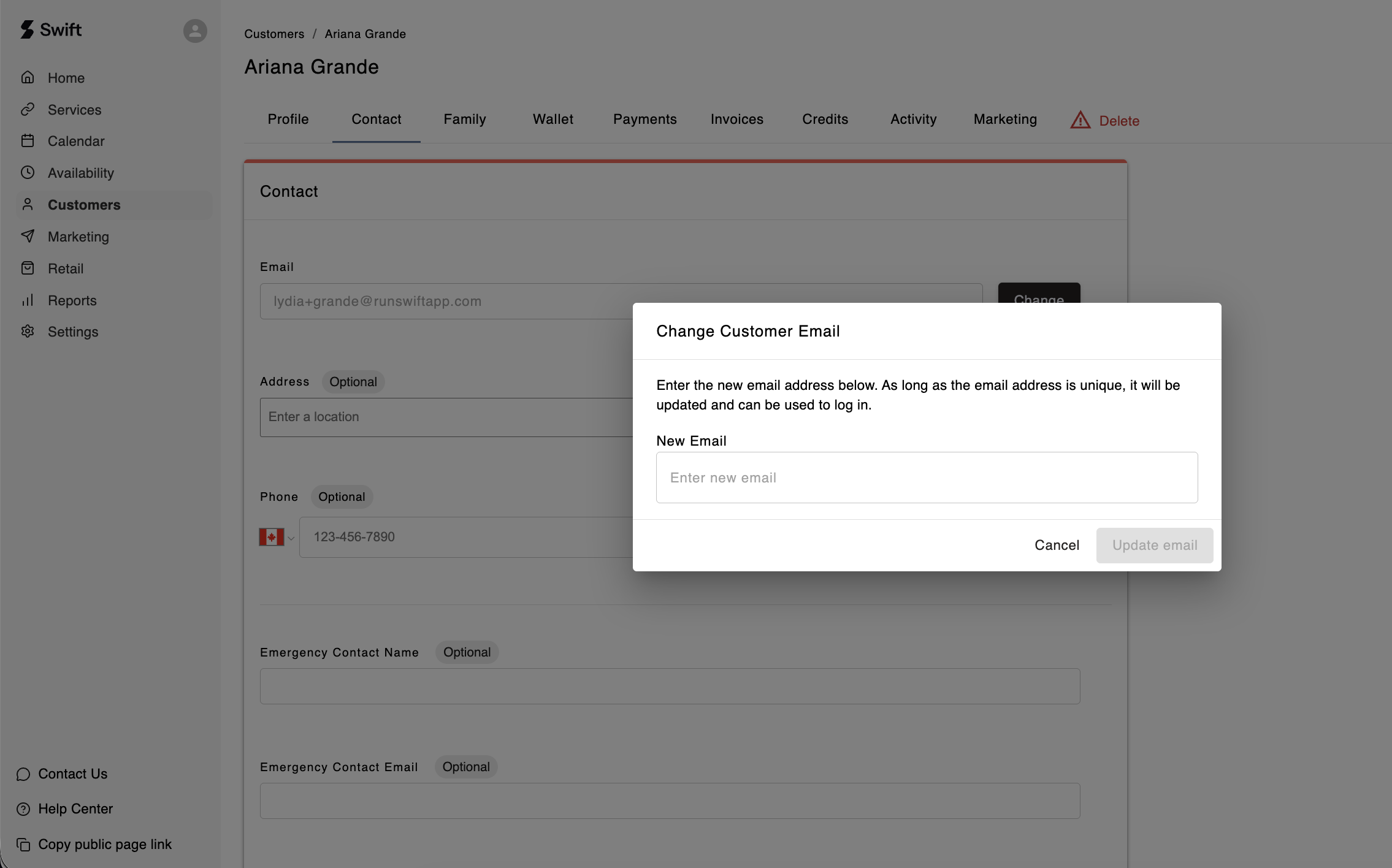
Facility's can change or update a customer's email address, as long as the email address is unique and not already in use.
- In Swift Admin, go to the customer's profile
- Select the Contact tab
- Next to their Email, click on the Change button
- Enter in their new email address
- Click the Update Email button to confirm
The customer can also update their own email address through their own Swift account. You can share the following steps with the customer:
- Go to the facility's booking page URL, and log in with your current email address
- Click on your profile icon in the top right corner
- Select My Account
- On the Profile tab, scroll down to the Contact section
- Click the Change button next to your current email address
- Enter in your new email address
- Check the inbox of your new email address for the verification code
- Enter the code into the field and it should automatically update your email address
Once a customer's email address has been updated or changed, they will log into their Swift account using the new email address going forward.